
SOAP web services remain a common integration method for many enterprise applications and legacy systems. In this document, we’ll walk through how to create a SOAP Webservice using Mule 4 and how to expose that to users.
As MuleSoft offers an API KIT router for exposing Rest API similarly MuleSoft provides SOAP Router for exposing SOAP services by using a WSDL (Web Services Description Language) file.
WSDL:
Wsdl is a web service descriptive language used to describe the functionality of SOAP-BASED web service.
There are multiple ways to create a WSDL file by using a WSDL editor or by using eclipse.
Creating WSDL file by using eclipse.
(Prerequisite: Assuming WSDL definitions and technical terms are already known for XML).
Create a new utility project in Eclipse.
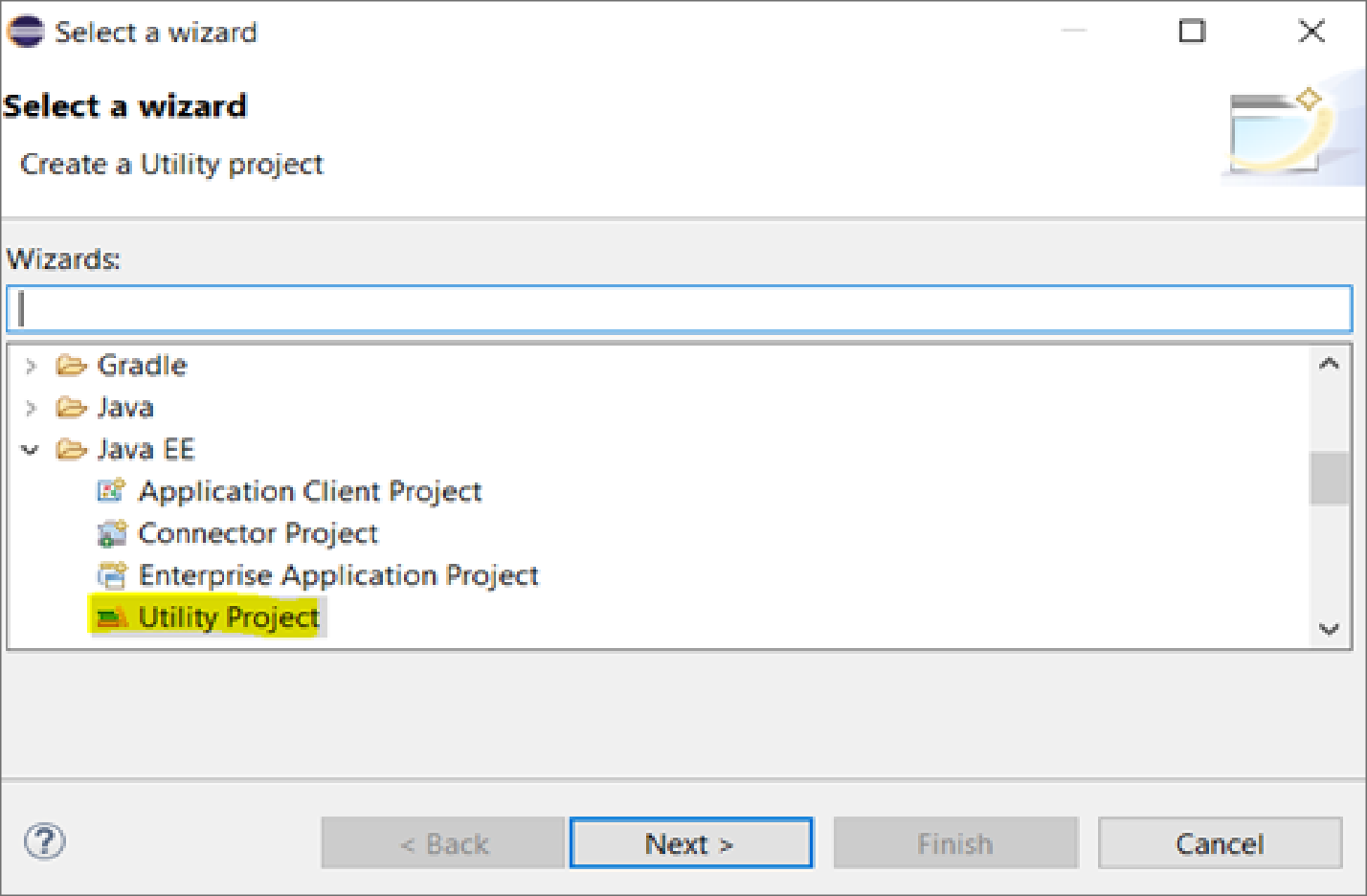
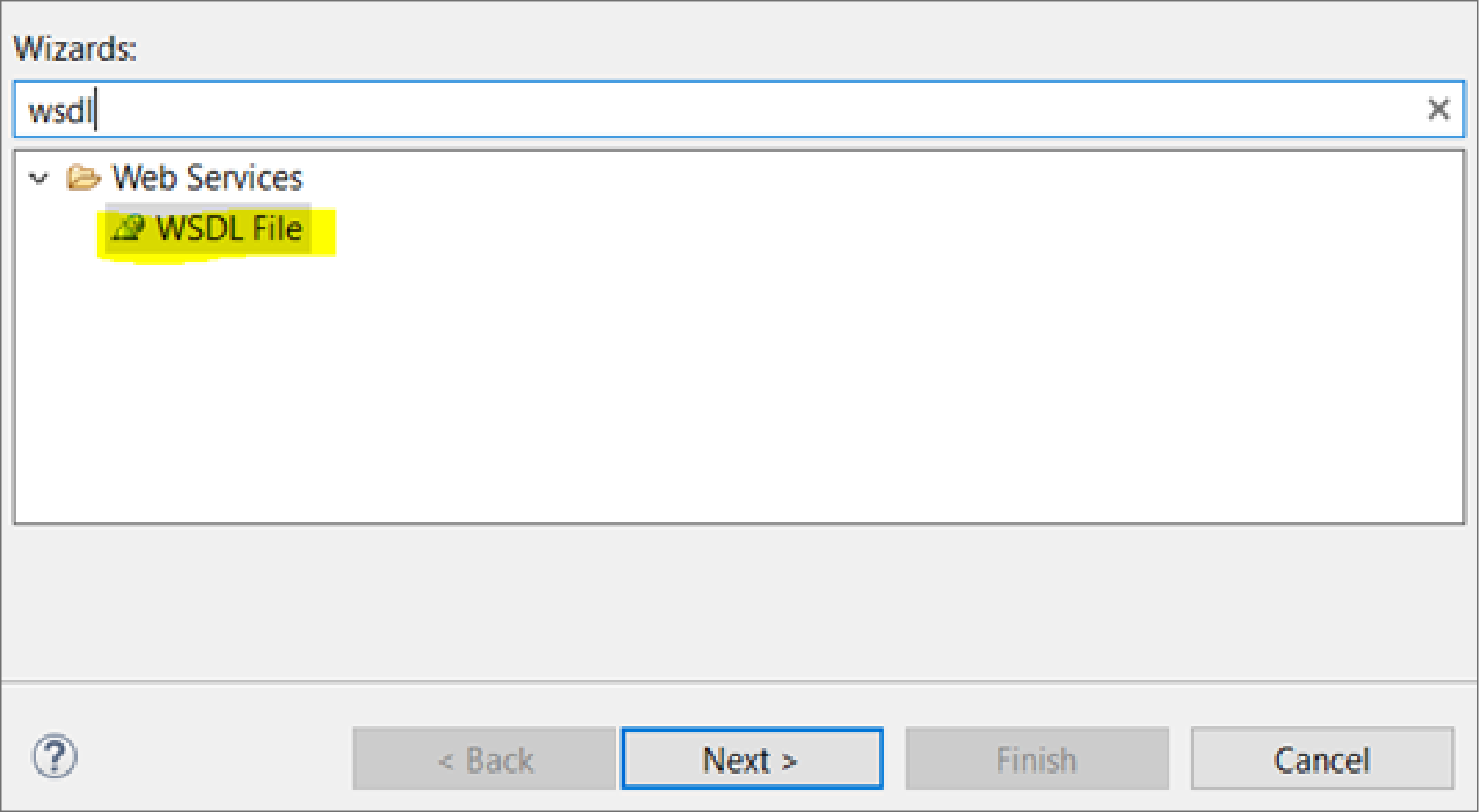
create a WSDL file under utility project by selecting WSDL and giving a sample name to the WSDL file for eg(Test. WSDL).
Once the WSDL file is created you can go to the design option as shown below and can edit the WSDL. In these examples, we want to get the student details by providing a student ID.

Editing the parameter and operation as required with the fields to add in input and output parameters.
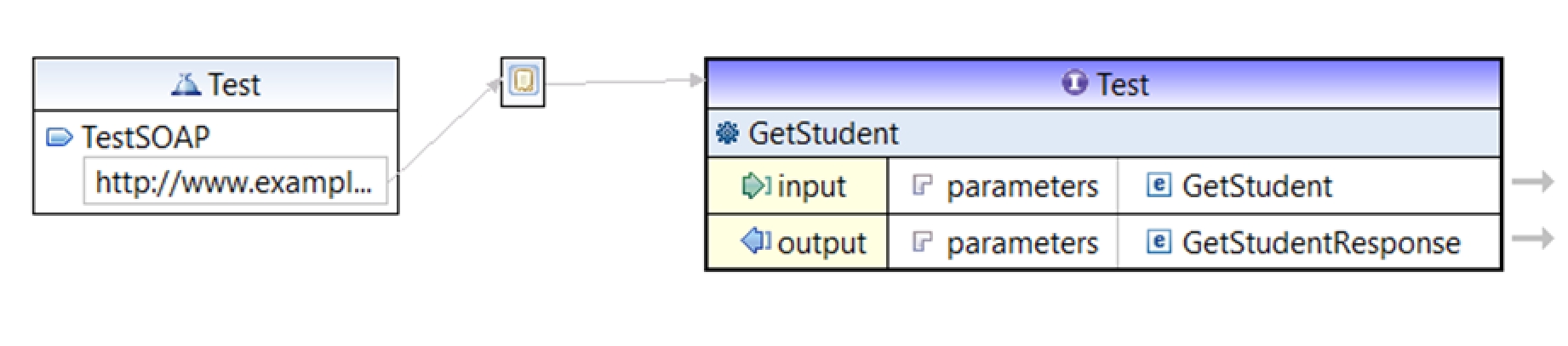
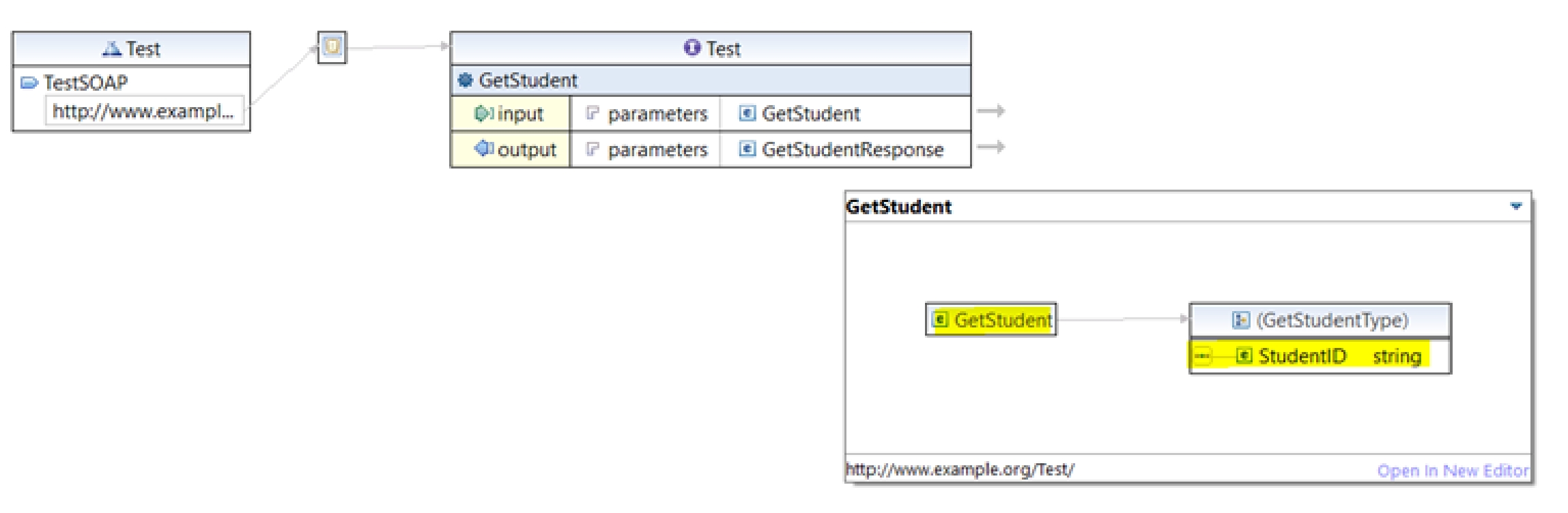
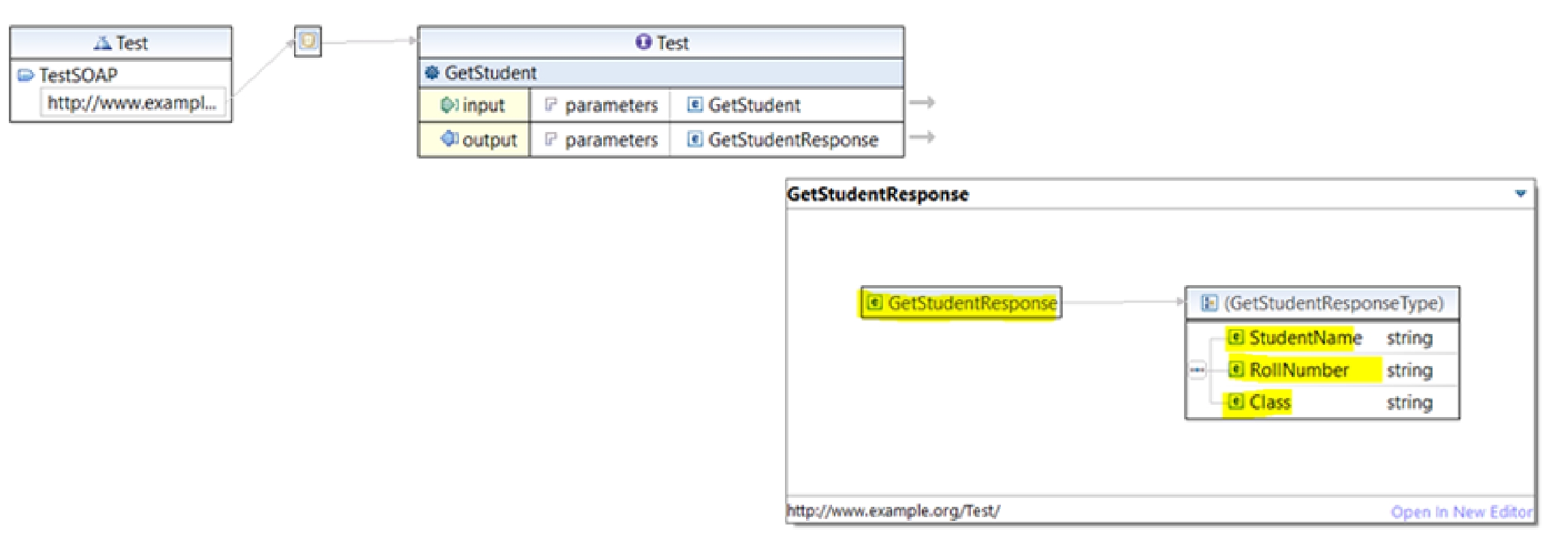
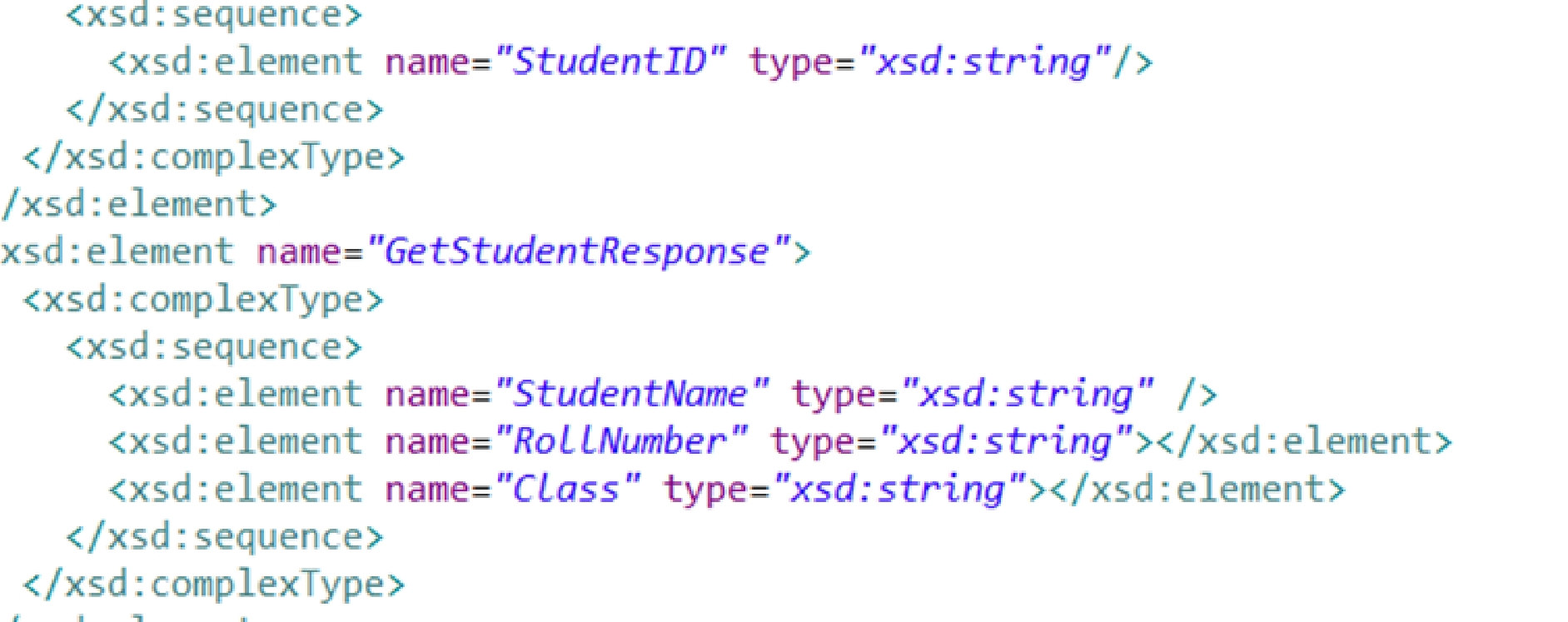
Or you can edit the WSDL from source only instead of design as follow.
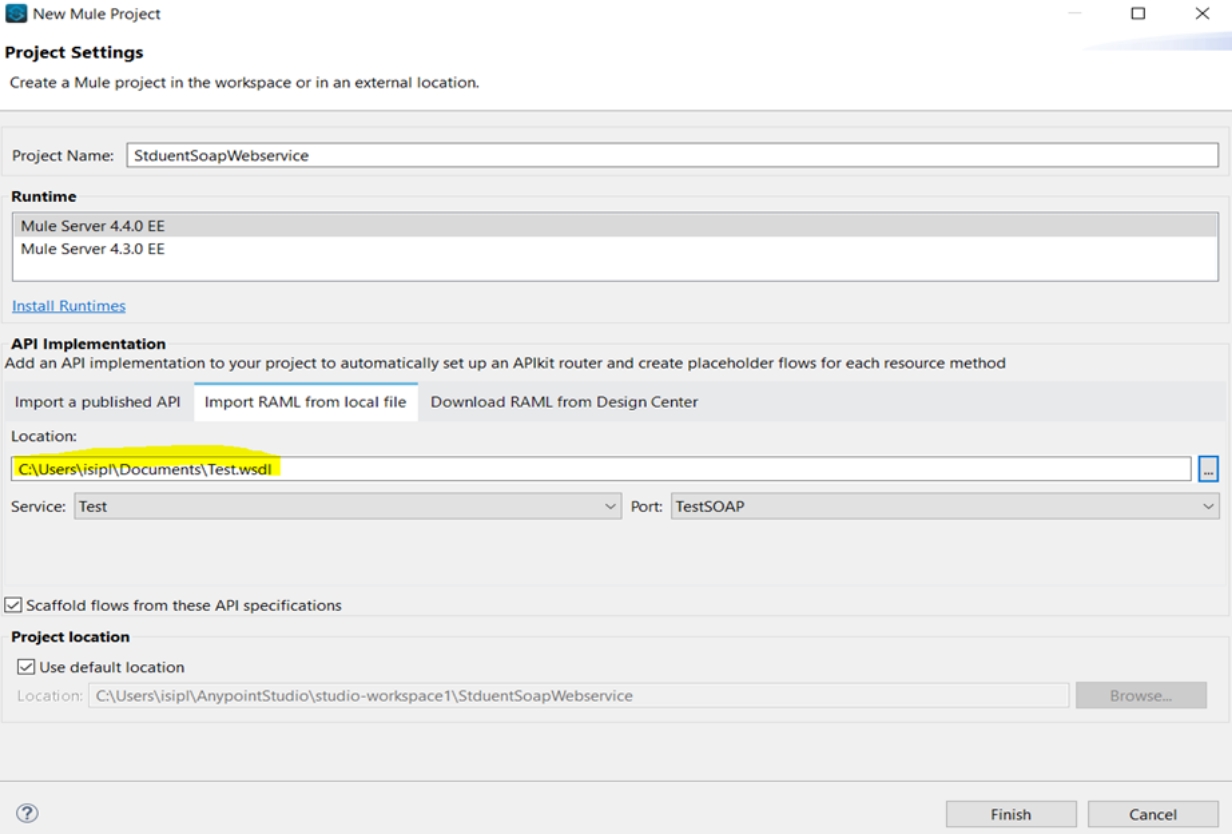
Once WSDL is created open Anypoint studio and create a New Mule project by selecting the WSDL file which was created i.e Test.WSDL and the service will be automatically picked up.
Once the project is created we will be able to see SOAP router is being created for WSDL.
By default, the configuration of the listener will be 8081. To follow the MuleSoft standard we can add these in properties files or WSDL with ports as 8082 if we are using HTTPS and 8081 if using HTTP.
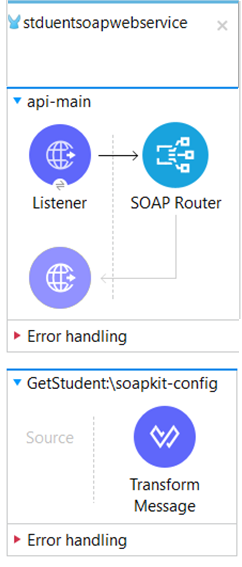
Currently, in the generated flow we will have a SOAP fault message which can be edited with your requirement and modify the flow.
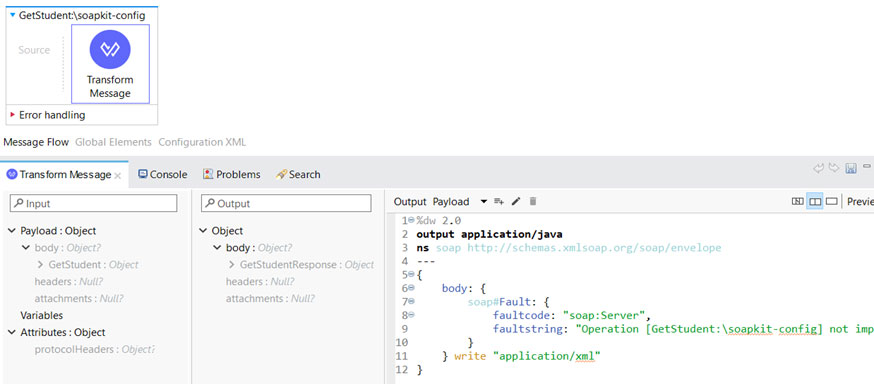
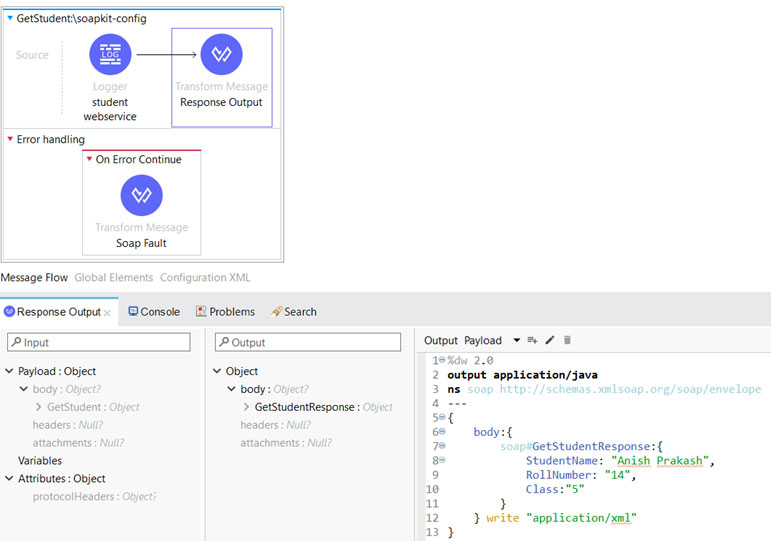
In the Transform message, we can set our output response as defined in our WSDL file and can implement the logic of fetching the student details from a database or any end system.
In the below snippet the value is hardcoded.
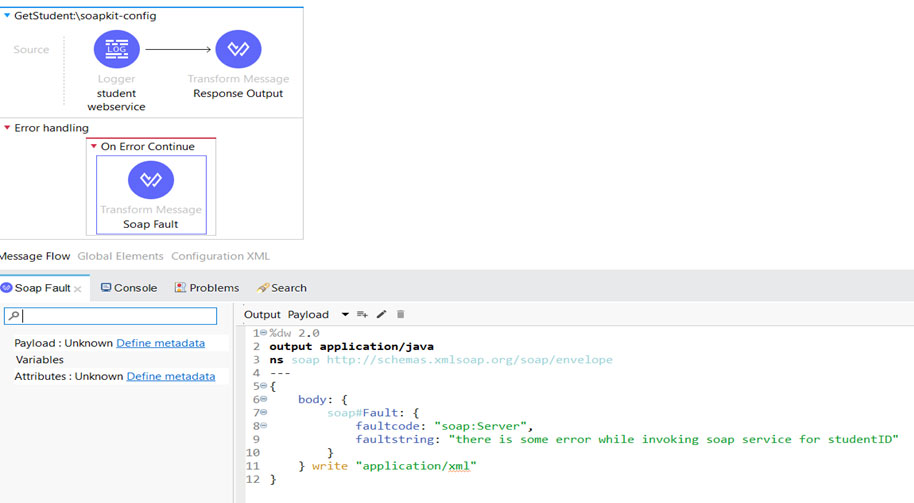
Setting up the SOAP fault: when exposing any SOAP-BASED web service mule can encounter an error that can be defined under SOAP fault depending on the error logic used in the flow which can be either on ‘error propagate’ or on ‘error continue’ and defining our error.
Testing the service:
Once the Mule application is deployed in AnyPoint Studio, we will use SOAP UI to check if everything is working correctly.
SOAP UI:
SOAP UI is an open-source web service testing application for Simple Object Access Protocol.
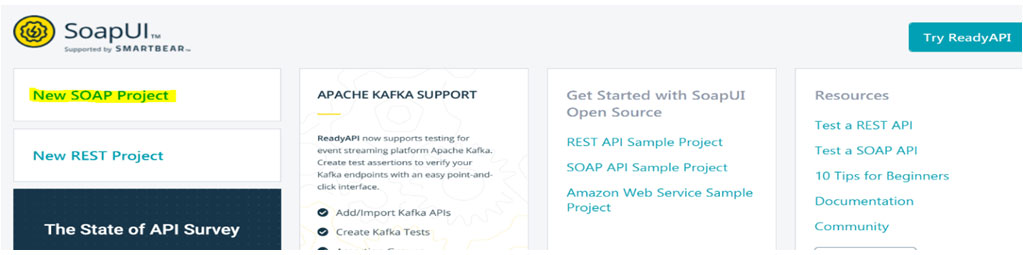
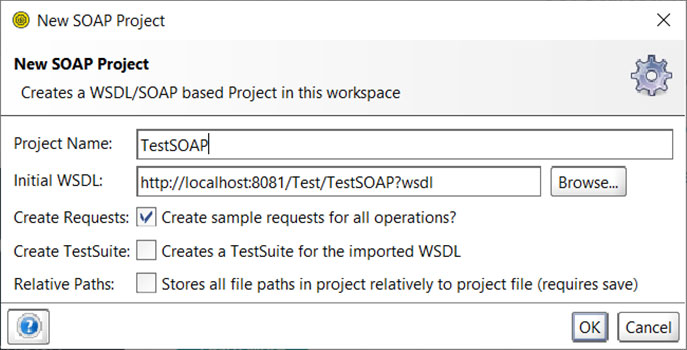
Create a new SOAP project in SOAP UI.
Provide the URL of the application by adding? WSDL at the end of the URL.
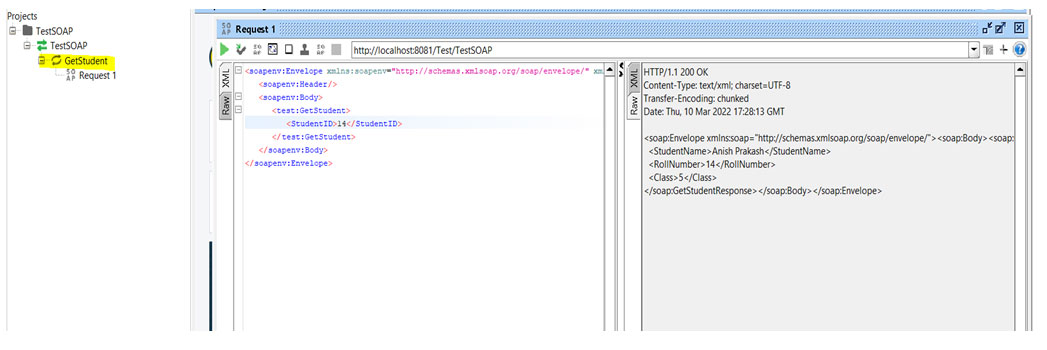
Once the project is added to SOAP, we can test our application operation which is Get Student details.
SOAP web service is ready but now it is open to all without any security and while developing any API either REST or SOAP, security plays an important role. And for adding security to our SOAP-BASED web service MuleSoft provide a WSS module.
WSS:
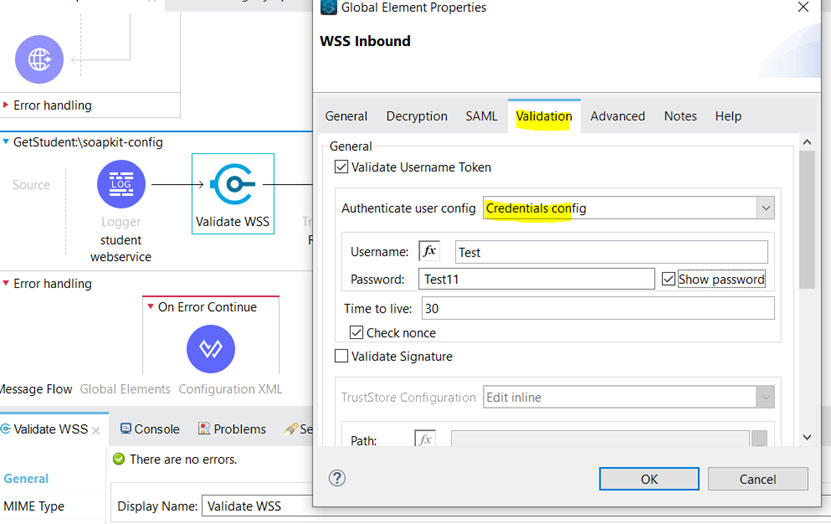
WSS module helps to process and validate an inbound SOAP request against the WSS configuration.
We have configured username and password into validating username token under the WSS validation section by keeping Authenticate user config as Credentials Config.
Adding the below transformation in the request section of validating WSS.
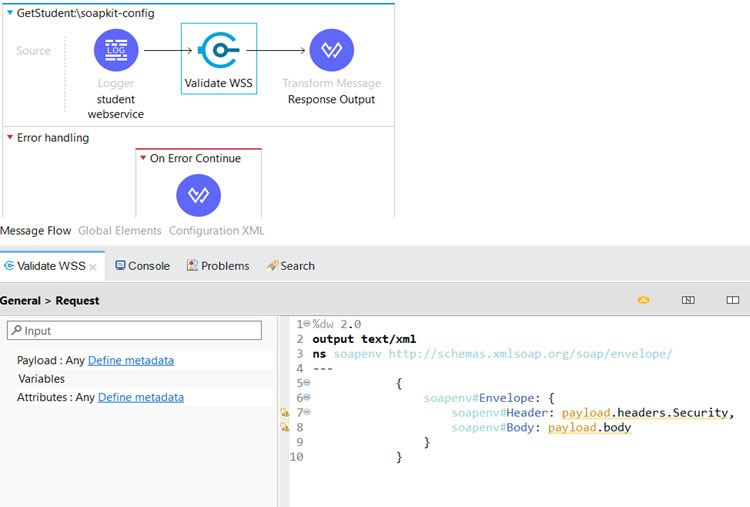
Redeploy the application and again try to send the request this time error is there as security is included for SOAP web service and a request is sent without adding the Username and password in the SOAP request which is configured in the WSS module within our application.

Adding the below in the SOAP request in the header section will help to send the SOAP request to the application.

<soapenv:Header>
<wsse:Security xmlns:wsse="http://docs.oasis-open.org/wss/2004/01/oasis-200401-wss-wssecurity-secext-1.0.xsd" soapenv:mustUnderstand="0">
<wsse:UsernameToken xmlns:wsu="http://docs.oasis-open.org/wss/2004/01/oasis-200401-wss-wssecurity-utility-1.0.xsd" wsu:Id="UsernameToken-5">
<wsse:Username>Test</wsse:Username><wsse:PasswordType="http://docs.oasisopen.org/wss/2004/01/oasis-200401-wss-username-token-profile-1.0#PasswordText">Test11</wsse:Password>
</wsse:UsernameToken>
</wsse:Security>
</soapenv:Header>
After Adding the WSS Security Configuration in the SOAP request header the request is successfully processed.
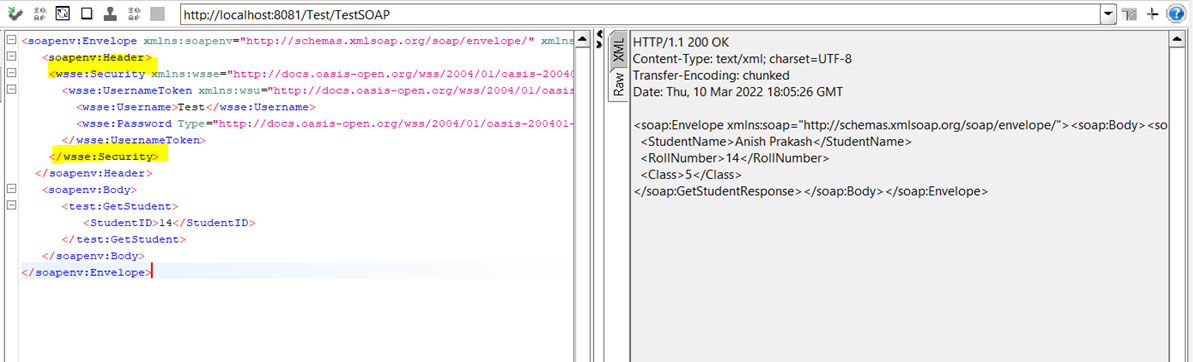
In this document we have exposed our SOAP API using mule by creating our own WSDL, providing security to SOAP API which is exposed to the end-user so that there is proper authentication and testing the API by SOAP UI.
Hope this document will help to set up your first SOAP API.
Very informative and detailed article. Thanks a lot Dmitry.